
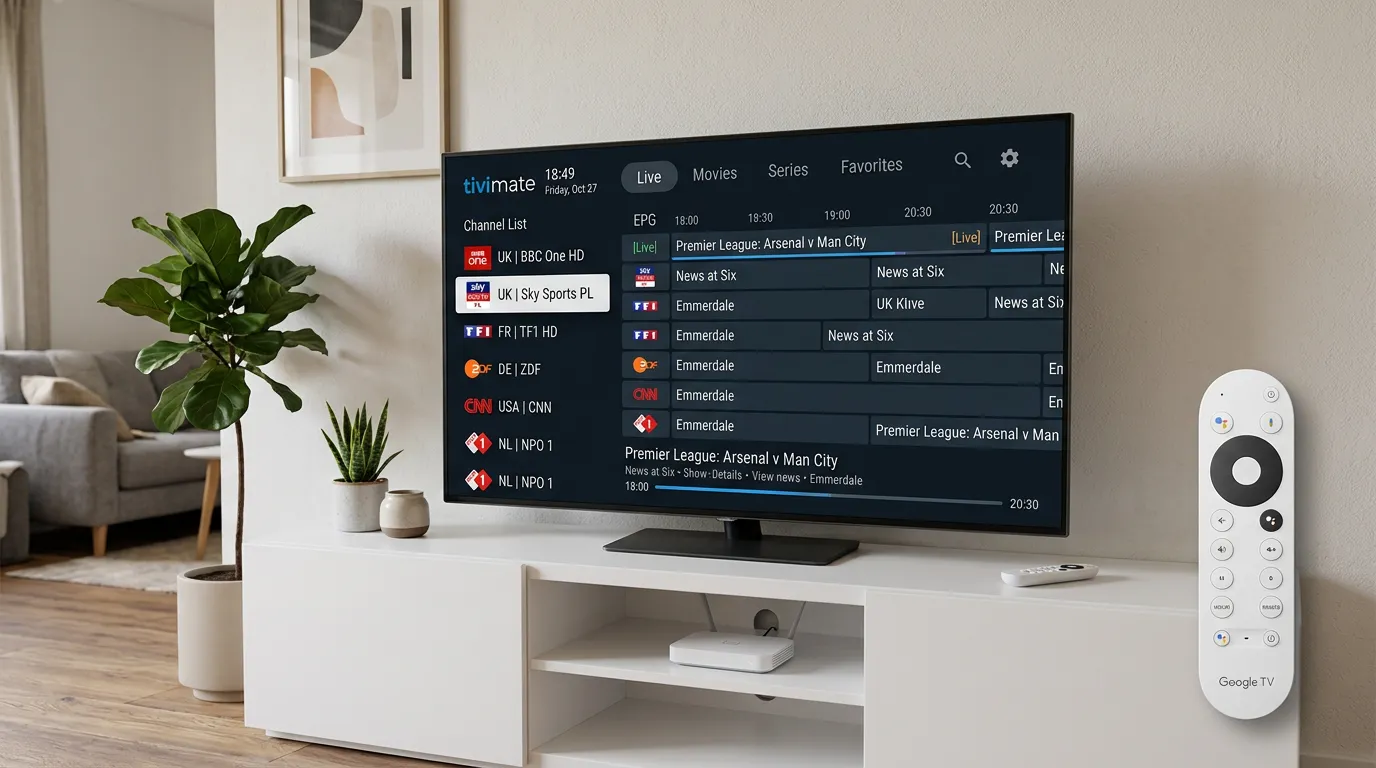
If you are serious about IPTV in the UK, Android TV is hands down the best platform to run it on. Not Samsung. Not LG. Not even Firestick. Android TV gives you full access to the Google Play Store, which means every serious IPTV app is available to you without sideloading, workarounds, or developer modes.
Sony, Philips, TCL, Hisense, and dozens of Android TV boxes all run it. If you own any of these, you have the most capable IPTV device already sitting in your house. This guide covers why Android TV is king for IPTV in the UK, which apps to use, how to set it up, and how to squeeze every drop of performance out of it.
What Makes Android TV Better for IPTV?
The answer is simple: app freedom. Samsung and LG restrict what apps you can install through their own stores. If an IPTV app gets removed from the Samsung App Store — which happens — you are stuck. Android TV does not have this problem.
The Google Play Store on Android TV has every major IPTV app: TiviMate, IPTV Smarters Pro, OTT Navigator, Kodi, Perfect Player, and more. You can also sideload APK files directly if you want something that is not in the store. No restrictions, no workarounds, no frustration.
On top of that, Android TV devices typically have more powerful processors than Samsung Tizen or LG webOS platforms. This means smoother EPG scrolling, faster channel switching, and better handling of HD and 4K streams.
Best IPTV Apps for Android TV in the UK
TiviMate — The Gold Standard
TiviMate is the app that made Android TV the best IPTV platform. The EPG is beautiful, channel switching is instant, you can set favourites, record to external storage, use catch-up, and customise the interface to your liking. The free version is excellent. The premium version for a few pounds a year unlocks recording and multi-playlist support. If you only install one IPTV app, make it TiviMate.
IPTV Smarters Pro
Smarters is the most widely compatible app across all devices. It supports Xtream Codes login, has a clean interface, and works reliably. It is not as polished as TiviMate, but it is free and gets the job done. Good choice if you share your setup with non-technical family members because the layout is straightforward.
OTT Navigator
A slightly more advanced option for users who want total control over their IPTV experience. OTT Navigator lets you manage multiple playlists, customise channel grouping, and adjust almost every aspect of the player. Not the prettiest app, but extremely powerful.
Kodi with IPTV PVR Client
Kodi is the power user’s dream. It is infinitely customisable but requires more setup time. You install Kodi from the Play Store, then add the PVR IPTV Simple Client add-on to load your M3U playlist. The result is a fully featured media centre that handles IPTV alongside your local media library. Not for beginners, but unbeatable for those who want everything in one place.
The App Is Only Half the Story
You could install TiviMate and have the most beautiful interface on the planet, but if the IPTV service feeding it channels runs cheap servers, you will spend your evenings staring at a buffering wheel instead of watching television.
The app is the player. The IPTV provider is the engine. And the engine matters more.
Golden TV is a service that a lot of Android TV users in the UK have settled on after trying multiple providers. Their playlist loads cleanly in TiviMate with full EPG data, the streams hold steady during Premier League weekends, and the channel switching is genuinely fast — not the three-to-five second delay you get with budget services.
If you have already got your Android TV set up and just need a reliable provider to plug into it, Golden TV is worth trying. Send them a message on WhatsApp and see for yourself.
How to Set Up IPTV on Android TV
This is the easiest setup of any platform. Here is the process using TiviMate.
Open the Google Play Store on your Android TV. Search for TiviMate. Install it.
Open TiviMate and select Add Playlist. Choose Xtream Codes and enter the username, password, and server URL from your IPTV provider. Alternatively, select M3U Playlist and paste your playlist URL.
Wait about thirty seconds for the channel list and EPG to load. That is it. You are watching live television.
The same basic process applies to IPTV Smarters and OTT Navigator — download from Play Store, enter credentials, start watching. No sideloading, no MAC addresses, no activation websites. Android TV just works.
Performance Tips for Android TV IPTV
Ethernet over WiFi, always. Android TV devices and smart TVs with Android built in all have ethernet ports. Use them. The difference in stream stability is massive, especially during live sport when millions of people are watching simultaneously.
Change your DNS to Cloudflare. Go to your Android TV network settings and manually set your DNS to 1.1.1.1. This can reduce buffering on some setups by improving how quickly your device resolves channel stream URLs. It takes thirty seconds and is completely free.
Disable system animations. In Android TV developer settings, you can reduce or turn off window and transition animations. This makes the entire interface feel snappier, including IPTV apps. To enable developer settings, go to Settings > About > press Build Number seven times.
Keep your device updated. Android TV firmware updates often include performance improvements and bug fixes that benefit IPTV apps. Check for updates every month.
Use an external USB drive for recordings. If you use TiviMate Premium’s recording feature, record to a USB drive plugged into your Android TV device rather than internal storage. This prevents storage from filling up and keeps the device running smoothly.
For broadband speed testing and more troubleshooting, see Speedtest.net and our IPTV buffering fix guide.
Best Android TV Devices for IPTV in the UK
If your current TV does not run Android, you can add it with a standalone device. Here are the best options for UK IPTV users.
Chromecast with Google TV — the simplest and cheapest option at about thirty pounds. Runs Google TV (which is Android TV underneath), plugs into any HDMI port, and supports all IPTV apps from the Play Store. Compact, quiet, and works brilliantly.
NVIDIA Shield TV — the premium choice. Powerful enough to handle 4K HDR IPTV without breaking a sweat. Has a gigabit ethernet port, Dolby Atmos support, and enough processing power to run Kodi with multiple add-ons simultaneously. Costs around £150 but is the ultimate IPTV device if budget is not the primary concern.
Formuler Z11 Pro — built specifically for IPTV. Comes with the MyTVOnline app pre-installed, has a dedicated IPTV remote with channel up/down buttons, and handles large playlists effortlessly. Popular among serious IPTV users in the UK.
For Firestick users wondering whether to switch, our IPTV for Firestick guide covers that platform in full. But honestly, if you are buying new hardware, Android TV is the better bet.
Frequently Asked Questions
Is Android TV better than Firestick for IPTV?
For most users, yes. Android TV has full Google Play Store access which means more app choices, no sideloading required, and generally better hardware. Firestick is cheaper but more limited in app availability and processing power.
Can I use TiviMate on Android TV for free?
Yes. The free version of TiviMate works perfectly for live TV viewing with EPG support. The premium version adds recording, catch-up, and multi-playlist features for a small annual fee.
Do I need a VPN for IPTV on Android TV?
In most cases, no. A VPN adds latency which can cause buffering. Most UK IPTV services work perfectly without one. Only consider a VPN if your ISP is actively throttling streaming traffic.
What internet speed do I need for IPTV on Android TV?
At least ten megabits per second for HD. For 4K content, twenty-five megabits or higher. Always prefer a wired ethernet connection over WiFi.
Can I install IPTV apps on Google TV?
Yes. Google TV is built on top of Android TV. Every IPTV app available on Android TV also works on Google TV devices like the Chromecast with Google TV.
How do I update IPTV apps on Android TV?
Open the Google Play Store, go to My Apps, and select Update All. You can also enable automatic updates in Play Store settings so your IPTV apps always stay current.
The Bottom Line
Android TV is the platform that gives you the most control, the best apps, and the smoothest IPTV experience in the UK. Whether you already own a Sony Bravia, a Philips TV, or you are buying a cheap Chromecast to plug into your existing set, Android TV opens up the full world of IPTV without compromise.
Install TiviMate, connect a reliable provider, plug in an ethernet cable, and enjoy. It really is that simple.
For more comparisons across different platforms and services, check our best IPTV UK provider guide and our IPTV providers in UK comparison.
This website is for informational purposes only. We may recommend third-party services based on user feedback and testing. All trademarks belong to their respective owners.